Recently I have made a full CI/CD pipeline for a Nuxt.js application. My goal was to move away from manual server uploads and create a professional “push-to-deploy” workflow.
This post breaks down how I built an automated pipeline using GitHub Actions, AWS S3, AWS CodeDeploy, and EC2 along with the specific challenges I overcame regarding the file structures and secret management.
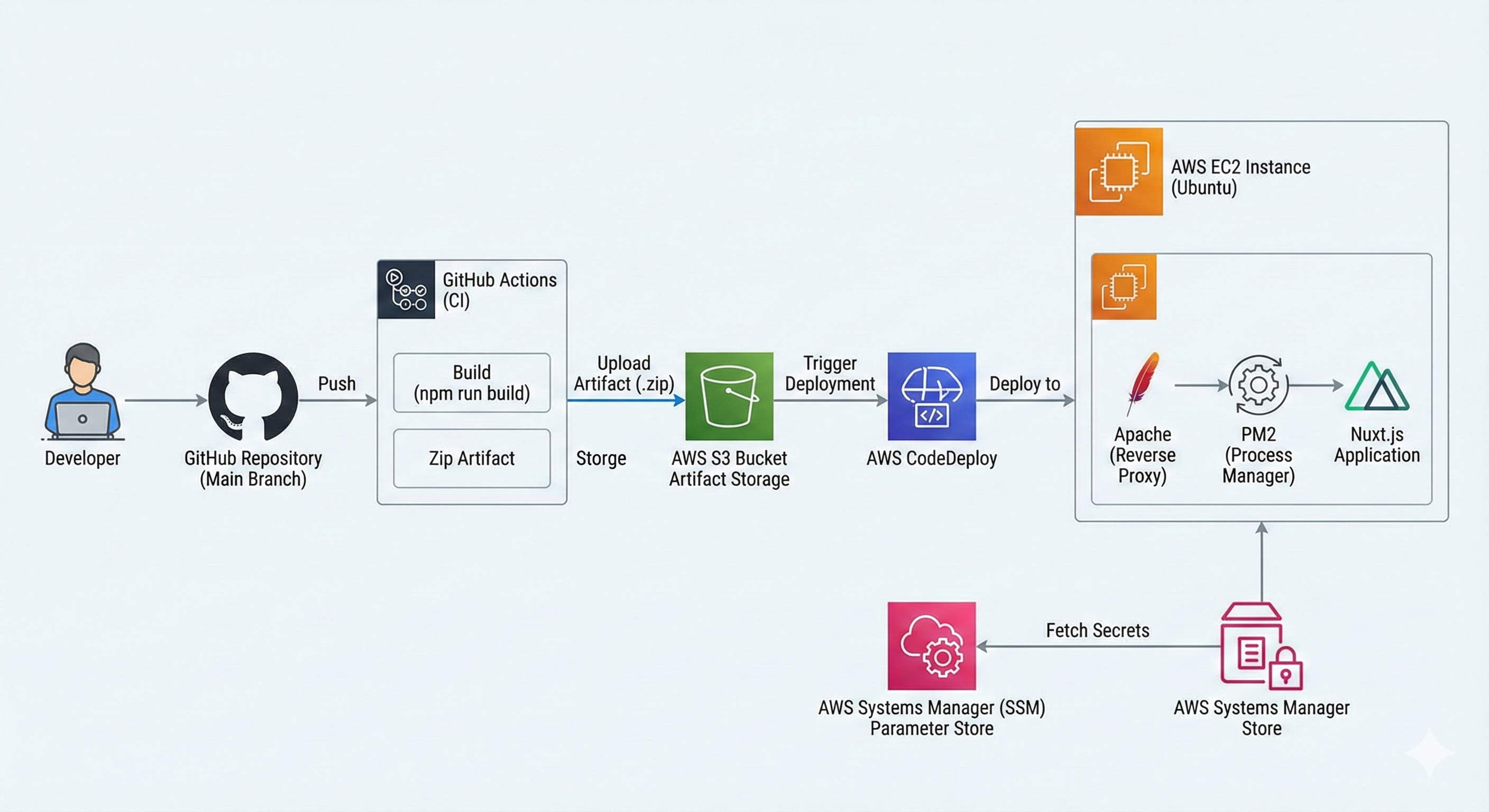
The High-Level Architecture
I chose a classic robust architecture for this deployment:
- Source Control: GitHub (Main branch).
- CI (Build): GitHub Actions installs dependencies, builds the Nuxt app, and bundles it into a generic
.zipartifact. - Artifact Storage: AWS S3 (acts as the bridge between GitHub and AWS).
- CD (Deploy): AWS CodeDeploy pulls the artifact from S3 to the server.
- Server: An AWS EC2 instance (Ubuntu) running Apache (Reverse Proxy) and PM2 (Process Manager).
Phase 1: The Infrastructure Setup
Before writing a single line of automation code I needed to prep the “cloud hardware.”
The Server (EC2) & Proxy
I launched an Ubuntu t2.micro instance. Since Nuxt runs on port 3000 by default, I couldn’t just expose it directly. I installed Apache and configured it as a Reverse Proxy.
This configuration forwards public traffic (Port 80) to the internal Nuxt process (Port 3000):
<VirtualHost *:80>
    ProxyPreserveHost On
    ProxyRequests Off
    ProxyPass / http://localhost:3000/
    ProxyPassReverse / http://localhost:3000/
</VirtualHost>
IAM Roles (The Security Glue)
This was a critical step. AWS services are locked down by default. I had to create two specific IAM roles:
- EC2-CodeDeploy-Role: Attached to the server, allowing it to read artifacts from S3 and fetch secrets from SSM.
- CodeDeploy-Service-Role: Allowing the deployment service to issue commands to my EC2 instances.
Phase 2: The Build Pipeline (GitHub Actions)
I used GitHub Actions to handle the “Continuous Integration” side. The workflow listens for pushes to the main branch.
The Challenge: Subdirectories
My project wasn’t in the root of the repo it was inside a \demo folder. This caused immediate issues with my initial build scripts. The standard npm install commands failed because they couldn’t find package.json.
The Solution:
I utilized the working-directory key in my YAML configuration and carefully adjusted my zip command to bundle the contents of the demo folder into the root of the artifact.
- name: Build Nuxt Project
  working-directory: ./demo
  run: npm run build

- name: Create Deployment Artifact
  working-directory: ./demo
  # Zips the build output and places it in the root for S3 upload
  run: zip -r ../deployment.zip .output node_modules package.json appspec.yml scripts
Phase 3: The Deployment (AWS CodeDeploy)
Once the zip file lands in S3, CodeDeploy takes over. It uses an appspec.yml file to determine what to do.
I defined three lifecycle hooks:
- ApplicationStop: Runs a script to kill the existing PM2 process.
- AfterInstall: Sets file permissions (ensuring the ubuntu user owns the files not root).
- ApplicationStart: Bootstraps the new version.
Handling Secrets Securely
I strictly avoided committing my .env file to GitHub. Instead I used AWS Systems Manager (SSM) Parameter Store.
In my app_start.sh script I included a step to fetch these secrets on the fly during deployment:
aws ssm get-parameters-by-path
    --path "/my-nuxt-app/prod"
    --with-decryption
    --region "region name"
    --output text > .env
This ensures that my production database keys and API tokens are injected securely only at runtime.
Troubleshooting: The “Gotchas”
It wasn’t smooth sailing on the first run. Here are two specific errors I encountered and solved:
1. The “Script Not Found” Error
- Error:
chmod: cannot access 'scripts/*.sh': No such file or directory - Cause: Because my project was in a subdirectory (
demo/), the GitHub runner was looking for scripts in the root. - Fix: I had to ensure my scripts folder was moved inside
demo/and that my GitHub Action step explicitly setworking-directory: ./demo.
2. The Silent PM2 Crash (503 Gateway)
- Error: The deployment succeeded, but the site showed a “503 Service Unavailable”.
- Diagnosis: I SSH’d into the server and ran
pm2 list. The process list was empty—the app had started and immediately died. Runningpm2 logsrevealed a missing environment variable. - Fix: I updated the SSM Parameter Store permissions policy attached to the EC2 role allowing the server to actually read the secrets it was trying to fetch.
Conclusion
Building this pipeline bridged the gap between code and infrastructure. Now when I push a commit a complex series of events—building, zipping, uploading, stopping, configuring and restarting—happens automatically in under 2 minutes.
This project reinforced the importance of immutable artifacts (zipping the build) and role-based security (IAM) in a production environment.